This tab controls the parts list, balloons, and BOM that ADC creates on the drawings.
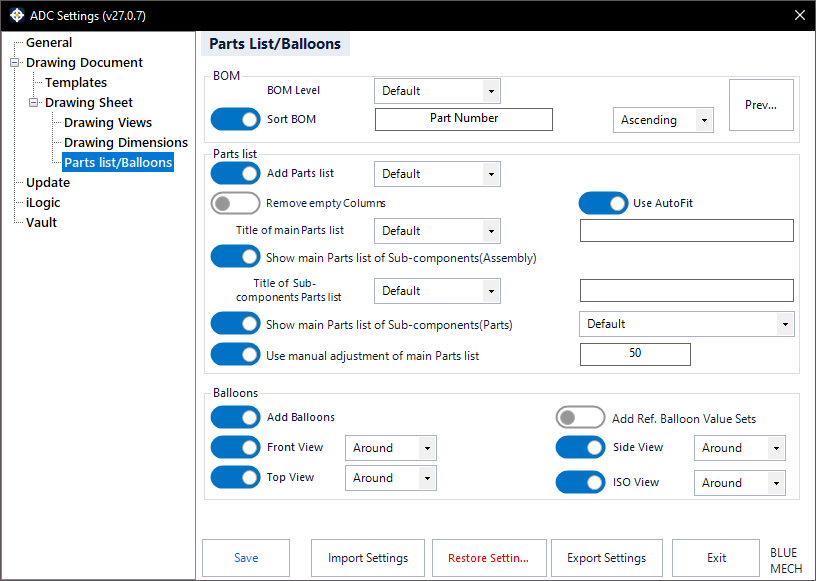
Add Parts list
- Activated: ADC adds a parts list to the selected corner of the sheet.
- Deactivated: neither parts list nor balloons are added.
Use AutoFit
- Activated: ADC fits the parts list automatically to its content.
Remove empty Columns
- Activated: ADC removes empty columns from the parts list for a cleaner result.
Use manual Adjustment of the main Parts List
Only for BOM Level Structured (All Levels). Activated: adjust the main parts list manually; define a number of sub-assemblies at which ADC asks whether to adjust manually or automatically.
Title of Parts list
Set the title of the main parts list and the sub-components parts list — Default, the document name, or custom text.
Show Main Parts List in Sub-Components (Assembly)
- Activated: show the main parts list on sub-assembly drawings.
- Deactivated: hide it (ADC moves it to a hidden position under the sheet — do not delete it, or the Update process will not work correctly).
Show Main Parts List in Sub-Components (Parts)
- Activated: add the main parts list to sub-component drawings of parts.
- Deactivated: do not add it.
BOM
Set your BOM structure before creating drawings. BOM Level options: Default (recommended), Structured, Structured All Levels, Parts Only. Which components are included is decided by the component filter on the General tab, not here.
Sort BOM
- Activated: the BOM is sorted before the parts list is built. Click Setup to choose the columns and directions — up to three. This setup is saved with the ADC settings profile you are editing. Use Preview to check the result.
- Deactivated: the BOM is left in its existing order.
👉 Full guide: BOM sort.
Add Balloons
- Activated: ADC adds balloons to the drawings; choose which views are ballooned — Front View, Top View, Side View, ISO View — and the orientation.
- Deactivated: no balloons.
Add Ref. Balloon Value Sets
- Activated: on sub-assembly drawings, balloons reference the component’s item number in the top-level assembly. Only for BOM Level Structured All Levels.
- Deactivated: no value sets.