Axion AI comes with the Axion installer for Autodesk Inventor 2027. You turn it on with your licence.
Install
Install Axion as described in Installing BLUE MECH add-ins.
Activate
Open the BM_Axion Dashboard. Type your licence key and click Sign In, or start a free trial there. See Activating & managing your licence.
Open the panel
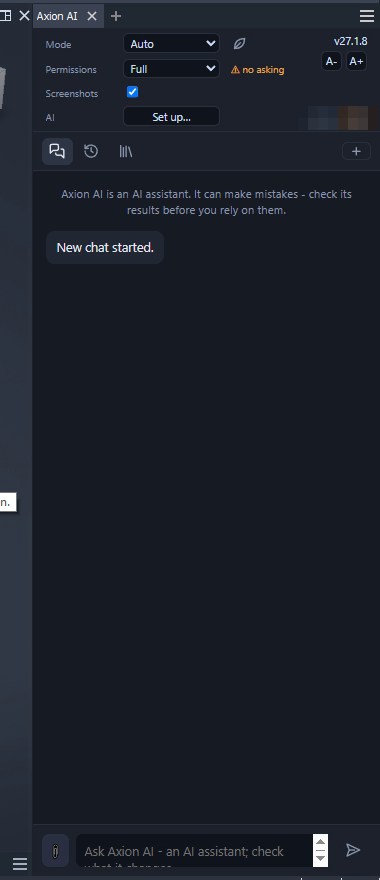
In Autodesk Inventor 2027, open the BM ribbon tab. In the Axion AI panel, click AI. The Axion AI panel opens beside your model.

The AI notice
Every new chat starts with: “Axion AI is an AI assistant. It can make mistakes – check its results before you rely on them.”
Version
The version shows at the top right of the panel, for example v27.1.8. The BM_Axion Dashboard shows it in the Version column of the module grid.
What updates without a new install
Some things come from our server, so you get them without reinstalling: the rules, the help texts for the tools and the BLUE MECH workflows. New tools need a new version of Axion.