A workflow is a job you saved, so you can run it again with one click on any model it fits. Running a saved workflow uses no AI and no credits. Say it once, run it any time.
Save a job as a workflow
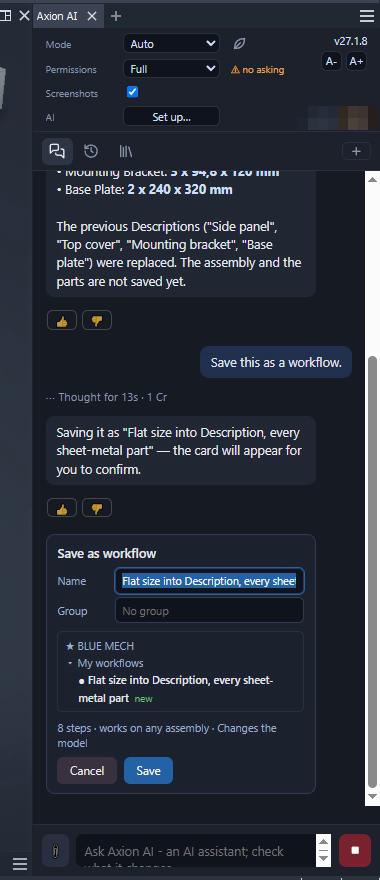
There is no Save button: when a job has worked, ask in the chat, for example “Save this as a workflow.” You can also ask in your next message. A Save as workflow card comes up with a suggested Name, a Group (pick one or type a new one) and a line that says what the workflow does, for example “8 steps · works on any assembly · Changes the model” (or “Writes files”, “Reads only”). Click Save. Saving is one chat turn.
Run a workflow
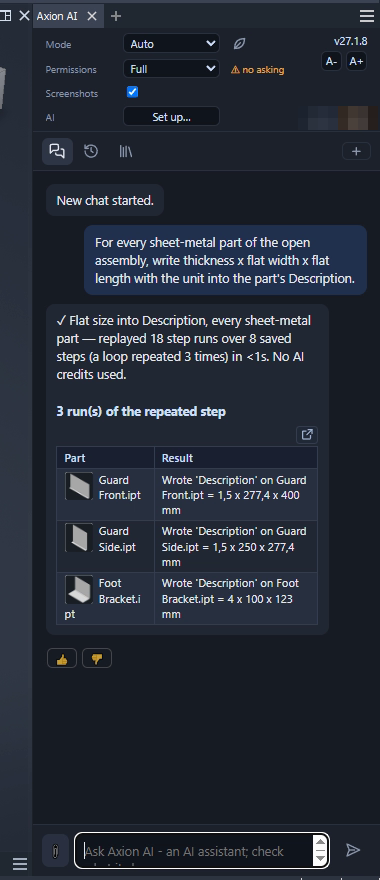
Open the Saved workflows tab and click Run (▶) on the workflow. The run makes no AI call and uses no credits. The chat shows what it did, for example “replayed 18 step runs over 8 saved steps (a loop repeated 3 times) in <1s. No AI credits used.”, with a table of the results.
If the open document does not fit the workflow, the run stops at the step that cannot run and says why, for example “a saved step refers to something from the recording that the open document does not have”.
Change a workflow in words
Ask in the chat, for example: “In my workflow ‘DXF of every sheet-metal part’, save the files to D:\DXF and stop when nothing is found.” Axion AI can rename, copy, move or delete a workflow (it asks before deleting), change its description, change a value in a step, add, remove or move steps, repeat steps for each item, add a condition or what happens if a step fails, and call another saved workflow. Each change is one chat turn.
A BLUE MECH workflow can’t be changed: use Copy to my workflows first, and change the copy. An imported workflow can be changed once it has shown you its steps.
The toolbar
- Folder — where your workflows are kept. “Change folder – choose where your workflows live (like iLogic external rules)”.
- Open this folder in Explorer.
- Import workflows — “an Axion export (.zip) or workflow files (.axw) from another device”. Each imported workflow shows you its steps once before it runs on this device.
- Export workflows — “Export your workflows into one file – to move them to another device”. Hand the file to a colleague, who imports it. BLUE MECH workflows are not exported, because they are on every PC already.
- Collapse or expand all groups.
- Refresh the list.
- Search workflows… — finds a workflow by name.
On each workflow
- A tag says what it does, for example Writes files or Makes changes.
- Add to favourites (☆).
- Run (▶).
- Copy to my workflows — “the copy is yours to change”.
- Remove this example — “Restore examples brings it back”.
BLUE MECH workflows
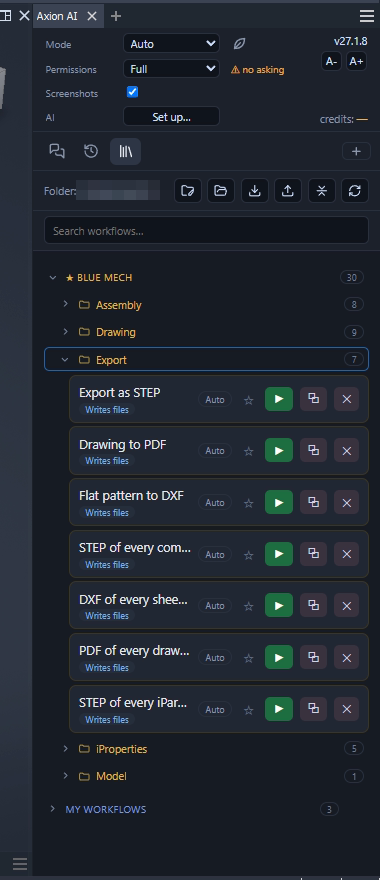
Under ★ BLUE MECH there are 30 ready-made workflows in five groups. The list updates from our server. Each one says what it needs; many need a saved model.
Export (7)
- Export as STEP — Exports the open part or assembly as STEP (AP214), same folder, same name.
- Drawing to PDF — Saves the open drawing as a PDF, all sheets, same folder, same name.
- Flat pattern to DXF — Exports the flat pattern of the open sheet-metal part as DXF for laser / CNC, same folder, same name. Creates the flat pattern first if the part has none.
- STEP of every component — Exports every component of the open assembly as STEP into a new "STP" folder beside the assembly (STP_1, STP_2 … when one exists) and opens that folder – a part placed many times once.
- DXF of every sheet-metal part — Exports the flat pattern of every sheet-metal part of the open assembly as a DXF into a new "DXF_Flat" folder beside the assembly (DXF_Flat_1 … when one exists) and opens that folder – each part once; other parts are left out.
- PDF of every drawing — Publishes the drawing beside the open assembly and beside each of its parts and sub-assemblies (same name) to PDF, all sheets, each beside its drawing; models without a drawing are listed.
- STEP of every iPart member — Exports each row of the open iPart factory’s table as its own STEP file, named after the member, beside the factory – no member files are generated, and the factory goes back to its own row.
iProperties (5)
- Stock size into Stock Number — Writes the stock size into the Stock Number iProperty: thickness x flat width x flat length for sheet metal (rounded up), otherwise length x width x height, with the unit.
- Part Number = file name — Sets the Part Number iProperty to the file name without its extension.
- Mass into an iProperty — Writes the current mass in the document’s own mass unit and precision into the custom iProperty "Mass" (created if missing), so a title block or parts list can show it.
- Size into Description — Writes the part’s size – length x width x height, largest first; the flat size on sheet metal – with its unit into the Description iProperty.
- Stock size into every part — Writes each part’s size, largest first, into its own Stock Number – a sheet-metal part its flat blank and thickness – for every part of the open assembly, each file once.
Assembly (8)
- Mass per component — Lists every distinct part of the open assembly with its quantity, single and total mass, and the assembly mass.
- Stock size list (cut list) — Lists every distinct part of the open assembly with its quantity, overall length x width x height and material – a cut list.
- BOM to Excel — Writes the parts-only BOM of the open assembly (every part once, with its total quantity) to "<name>_BOM.xlsx" in the same folder.
- Rename components to their part number — Shows every component’s old and new browser name (its Part Number), asks you, and renames only on Yes. Each keeps its own :1, :2 number.
- iPart sizes in this assembly — Lists every iPart member placed in the open assembly, at all levels: the occurrence, the member, its table row and the factory file.
- Part Number = file name, every part — Sets the Part Number iProperty of every part of the open assembly (parts-only list, each file once) to that part’s file name without extension.
- Mass into every part — Writes each part’s mass in the document’s own mass unit and precision into its own custom iProperty Mass – every part of the open assembly (parts-only list, each file once).
- Check the assembly constraints — Names every constraint of the open assembly that is broken or not up to date – the check that position and mass cannot make.
Drawing (9)
- Number the sheets — Renames every sheet to "number – name" (01 – Sheet …). Safe to run again after sheets were added or moved.
- Mask behind dimension text — Puts an opaque background behind every dimension’s numbers on the active sheet, so no line runs through them. Safe to run again.
- Hole table — Adds a hole table (X, Y and size of every hole) to the view on the active sheet that shows the most holes, placed beside the view.
- Add a revision — Asks for the revision (e.g. B) and what changed, then writes a row with today’s date into the revision table – adding the table first when the sheet has none.
- Model iProperties into the drawing — Copies Part Number, Description, Title, Revision Number, Project and Designer from the model the drawing shows into the drawing’s own iProperties.
- Check the drawing — Checks every sheet of the open drawing: overridden dimension values, detached annotations, views out of date or off the sheet, overlapping dimension text, parts-list rows without a balloon, holes without a note.
- Flat pattern drawing — Makes a new drawing carrying only the unfolded blank of the open sheet-metal part, scaled to fit – the laser / cutting drawing.
- Scale into the title block — Writes the scale of each sheet’s base view, as Inventor shows it, into the drawing’s Scale iProperty – VARIES when the sheets differ – so a title block that shows it carries the scale.
- Parts list and balloons — Places the parts list of the model the active sheet shows, then balloons every assembly view on that sheet against it.
Model (1)
- Copy as the next version, with its drawing — Saves a copy of the open part or assembly under the next version name (B.718.3 -> B.718.4), with its drawing copied beside it and pointed at the copy.
Use them in ADC
ADC can run your workflows while it creates drawings. See Axion AI workflows in ADC.