The settings at the top of the panel decide how Axion AI thinks, what it costs and how much it may do on its own.
Mode
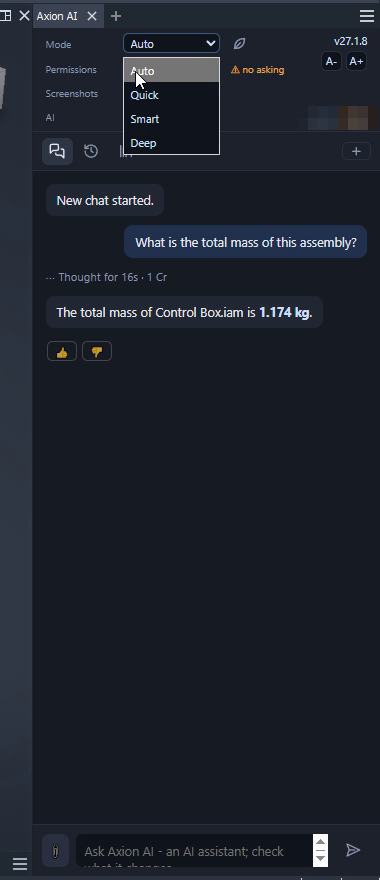
Mode sets how hard the AI thinks: Quick, Smart or Deep, or Auto to let Axion AI decide for each request.
Eco
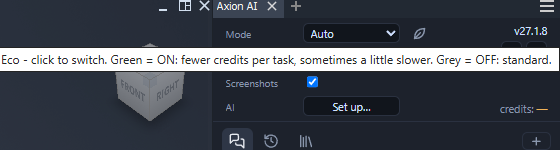
The leaf next to Mode switches Eco: “Green = ON: fewer credits per task, sometimes a little slower. Grey = OFF: standard.”
Permissions
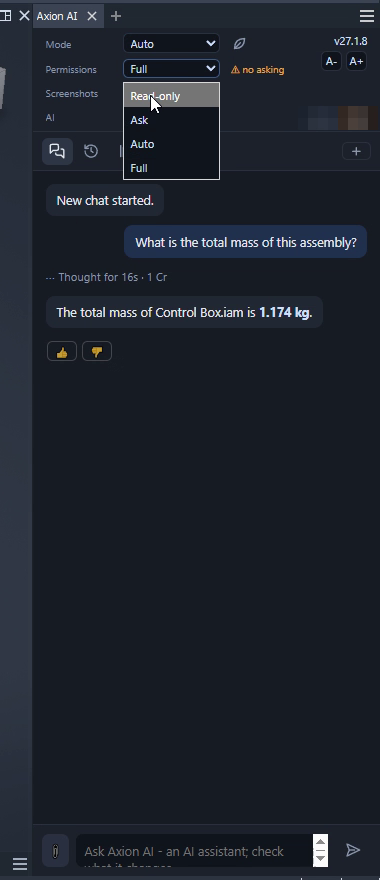
Permissions decides how much the AI may do without asking you. The default is Auto.
| Setting | What it does |
|---|---|
| Read-only | It answers, reads and exports. It changes nothing in your model. |
| Ask | It shows an Allow / Cancel card before every change. The card also has Allow for this chat. |
| Auto | It makes the changes you asked for and checks back when something is unclear. This is the default. |
| Full | It works on its own without asking (the panel shows “no asking”), and also runs existing code without asking. |
Asking a question is not read-only by itself. If you want it hands-off, set Read-only.
Cards you may see
- Allow for this chat (on the Ask card): “Allow changes like this without asking until you start a new chat. Saving outside the project, network locations and running code still ask.”
- A card comes up when an action overwrites a file, saves outside the workspace or writes to a network location. This happens in every Permissions setting.
- “This action RUNS CODE on this computer” comes up before the AI runs code that already exists, such as an iLogic rule in a document. You see it in Ask and Auto. In Read-only it is refused. In Full it runs without asking.
The AI never writes code. It can run code that already exists.
Screenshots
“OFF = no pictures at all. ON = the AI can capture a view, show it here, and see/analyse it.” Pictures of your model are only sent when Screenshots is ticked. See Privacy and your data.
Daily AI limit
In AI: Set up… you set a daily credit limit for this computer, from 50 to 10,000 credits a day (default 10,000). Once it is reached, AI spending stops for the day. It resets at 00:00 UTC.
AI: Set up…
Connects your own AI apps or your own AI key, and holds the BLUE MECH settings and the daily AI limit. See Your own AI app.