The chat is where you ask for a job in plain language and see what Axion AI did.

Ask
Type in the box at the bottom (“Ask Axion AI – an AI assistant; check what it changes…”) and press Enter or click the arrow. Say what you want, and select what it should work on first. Many jobs need a saved model.
Examples:
- “What is the total mass of this assembly?”
- “Write thickness x width x length of the flat pattern into the Description of every sheet-metal part in this assembly.”
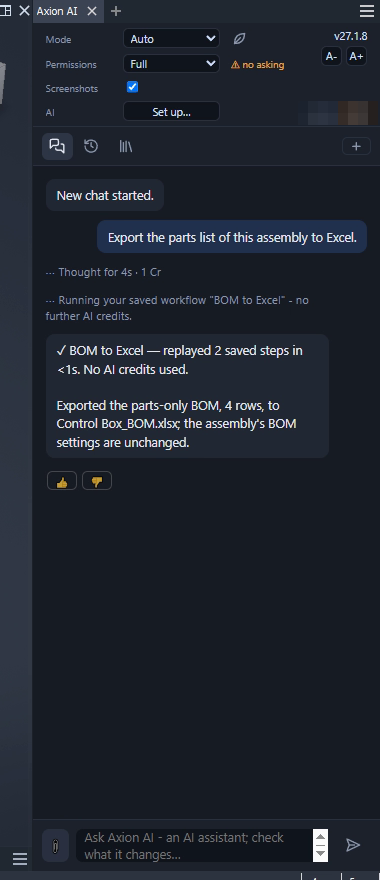
- “Export the parts list of this assembly to Excel.”
The answer
Above each answer you see how long it took and what it cost, for example “Thought for 44s · 3 Cr”. The answer says what was done. Use the thumbs to tell us whether it helped.
It uses your saved workflows
If a saved workflow already does what you ask, the chat runs it, for example “Running your saved workflow ‘BOM to Excel’ – no further AI credits”. Only the question itself is charged.
Tables to Excel
Answers with a table have Copy for Excel, Open in Excel, Save as Excel… and Save as CSV….
Stop or steer a running job
While a job runs, the red Stop button stops it: what was already done stays done, and nothing else is changed. If you type a message while it runs, Send steers the running work instead.
Undo
Every change Axion AI makes in the model is its own undo step (Ctrl+Z), named “Axion AI: …”. A request with several changes means several undo steps. Files it saves or exports are not undone.
New chat
Click + at the right of the tabs to start a new chat. Earlier chats are in Your chats.
Text size
A- and A+ under the version make the panel text smaller or larger.
Languages
Write in plain language. The panel itself is available in 11 languages: English, German, French, Spanish, Italian, Dutch, Polish, Portuguese, Russian, Vietnamese and Chinese.