This tab sets what the Update button does in the drawing environment. An update refreshes parts-list visibility and positions, parts-list titles, missing balloons, and balloon value-set values.
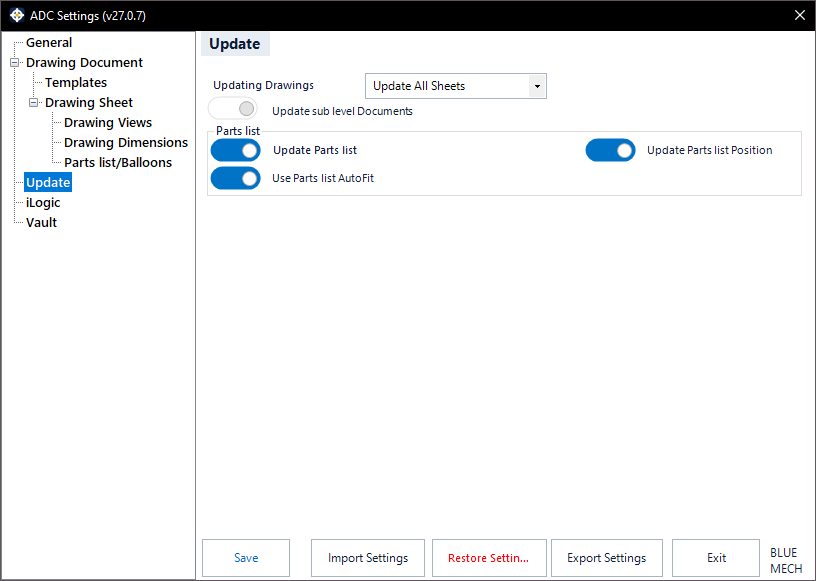
Updating Drawings
Choose the scope of the update:
- Update All Sheets — update all sheets in the active drawing document.
- Update Active Sheet — update only the active sheet.
- Update opened Drawings — update all open drawing documents and all their sheets.
- Update Top-level Drawing — update the whole assembly’s drawings from the top-level drawing (enable “Update sub level Documents” to iterate sub-documents).
- Update Drawings from Folder — update drawings in a folder (enable “Check sub Folders” to include sub-folders).
- Update Drawings from text list — update specific drawings listed by full file name in a text file.
- Allow me to choose — pick any of the above at run time without opening settings.
Update Trigger
Choose when the update runs.
Parts list
Control how the parts list is handled during an update:
- Update Parts list — refresh the parts list during the update.
- Update Parts list Position — reposition the parts list on update.
- Use Parts list AutoFit — auto-fit the parts list during the update.
Update sub level Documents
- Activated: the update cascades to sub-level documents.
Check sub Folders
- Activated: when updating drawings from a folder, ADC also searches its sub-folders.