The General tab controls how ADC applies its settings across your projects, and which components it creates drawings for.
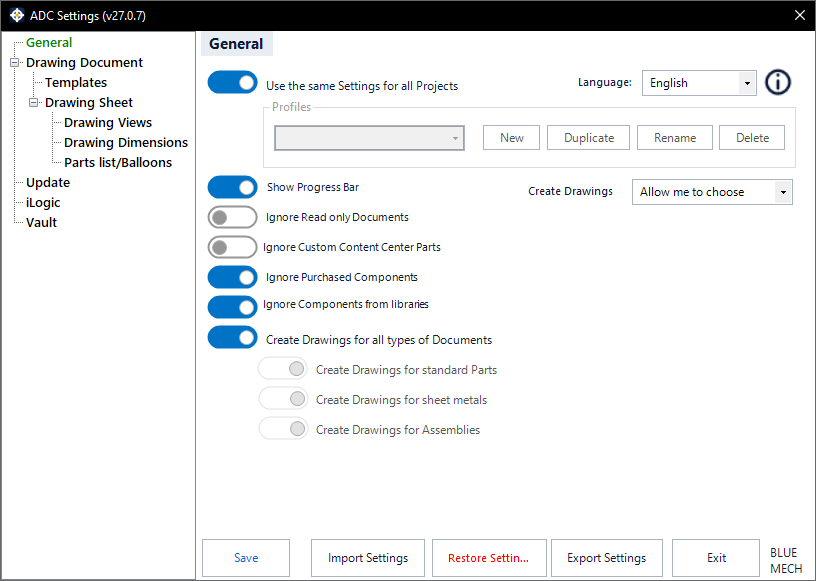
Use the same Settings for all Projects
- Activated: ADC uses one global set of settings in every project.
- Deactivated: ADC keeps a separate set of settings for each project, so different projects can use different settings. When deactivated, the Profiles controls below become available.
Profiles
When you are not using one global set of settings, you can keep named profiles for each project. Use New to create a profile, Duplicate to copy the current one, Rename to relabel it, and Delete to remove it. Profile edits are applied when you click Save and discarded if you click Exit, so you can experiment safely.
Profiles need an active Inventor project. With no project open, ADC stays on the global settings and tells you so rather than creating a profile that belongs to nothing.
Component filter
This is where you decide which components get a drawing. Pick a saved pattern in Create drawings for, or click Edit… to build one — for example sheet-metal parts only, or everything except purchased and library components.
Choose All components to switch filtering off entirely.
👉 Full guide: Component filters (Blocks) — building patterns, conditions, the live preview, and how patterns are stored and shared.
Replaces the older individual toggles. Earlier versions had separate switches for document types and for ignoring library, purchased and custom Content Center components. Those are now rules inside a filter pattern, which is both more flexible and easier to see. When you upgrade, your previous toggle settings are converted into a matching pattern automatically — you do not need to rebuild anything.
Create Drawings
Choose what happens when a drawing already exists for a component — for example let ADC ask you, skip it, or replace it.
Show Progress Bar
- Activated: ADC shows a progress dialog during a run so you can follow it and stop at any time.
Ignore Read only Documents
- Activated: ADC skips read-only documents.
- Deactivated: ADC also creates drawings for them.
Language
Switch the interface language; the choice is shared across all BLUE MECH modules and applies straight away.
Save, Import, Export & Restore
Save commits your changes. Export Settings writes your whole configuration — including drawing profiles and saved filter patterns — to a file you can carry to another PC; Import Settings reads one back. Restore Settings returns ADC to its defaults. See Settings: Export, Import & Restore.