Everything on the Settings dialog belongs to a profile. A profile holds which columns the component list shows, their order and width, the export naming rule, the Excel configuration and the sheet-metal rule — so a setup you use often is saved once and picked from the main form afterwards.
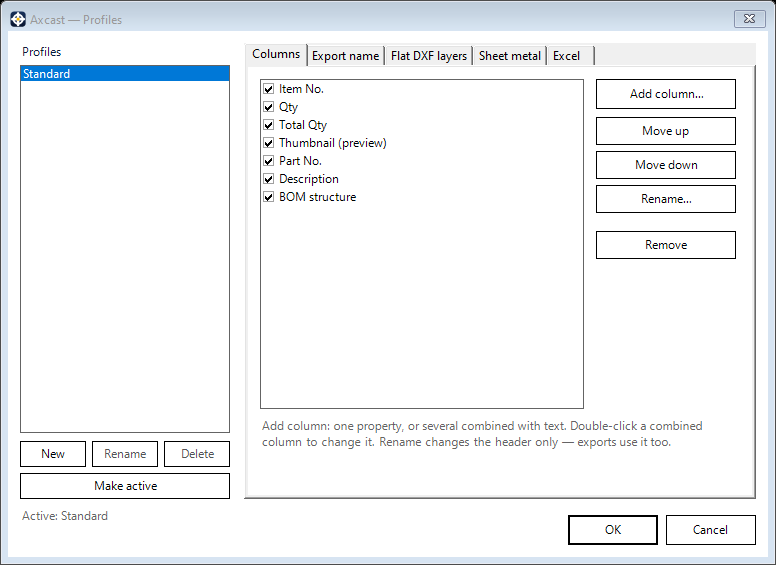
Profiles
- New, Rename, Delete and Make active manage the list on the left
- Standard is built in and protected — it cannot be deleted, so there is always a working profile to fall back to
- Changes on the main form are held as a working copy until you save them to a profile, so trying something out does not overwrite your saved setup
Columns
The Columns tab decides what the component list shows.
- Add column… opens the same property picker used elsewhere in the add-ins, so any iProperty or BOM property can become a column — see Property Composer
- Rename… changes only the heading that is displayed; the underlying property is untouched, and Excel output inherits the new heading
- Move up / Move down set the order, and Remove takes a column out
You can also work directly on the grid: drag a heading to reorder it, drag one off the grid to hide it, or right-click a heading to show and hide columns or reset them. The order you end up with is written back into the working profile.