Drawing Assistant adds its commands to the tabs you already work in, so they sit next to Inventor’s own tools rather than on a tab of their own. Each command below says what it does and whether it is free or part of the premium licence.
Most commands act on the selected views, or on all views on the sheet when nothing is selected — so you can work view by view or do the whole sheet in one click.
Dimensions
Annotate tab → Dimension panel.
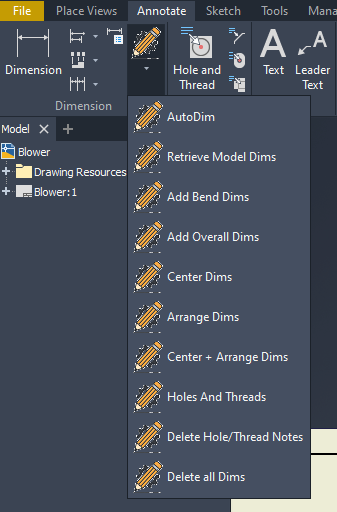
- AutoDim (premium) — adds dimensions and hole information to the selected view in one click.
- Retrieve Model Dims (premium) — brings the model’s own annotations into all or selected views.
- Add Bend Dims (premium) — adds bend dimensions to all or selected flat-pattern views.
- Add Overall Dims — adds the overall dimensions to the selected views.
- Center Dims — centres each dimension’s text on its dimension line.
- Arrange Dims — arranges all dimensions into even, readable rows.
- Center + Arrange Dims — both of the above in one step.
- Holes And Threads (premium) — adds hole and thread notes to all or selected views.
- Delete Hole/Thread Notes — removes those notes again.
- Delete all Dims — clears every dimension.
Center marks & center lines
Annotate tab → Symbols panel.
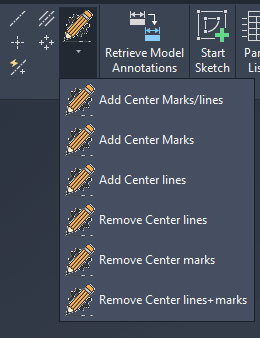
- Add Center Marks/lines (premium) — adds both, to all or selected views.
- Add Center Marks (premium) — center marks only.
- Add Center lines (premium) — center lines only.
- Remove Center lines — removes the center lines.
- Remove Center marks — removes the center marks.
- Remove Center lines+marks — removes both in one go.
Balloons
Annotate tab → Table panel, beside Inventor’s own Balloon command.
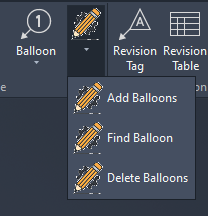
- Add Balloons (premium) — balloons all or selected views.
- Find Balloon (premium) — locates a balloon on the sheet, useful on crowded drawings.
- Delete Balloons — removes every balloon.
Parts list
Annotate tab → Table panel, beside Inventor’s own Parts List command.
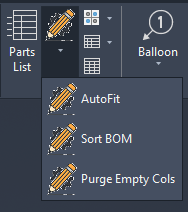
- AutoFit (premium) — sizes the parts-list columns to their content.
- Sort BOM (premium) — sorts the model bill of materials by the columns you choose and renumbers it; the parts list follows that order. See BOM sort.
- Purge Empty Cols — removes columns that contain nothing.
Smart Breaks
Place Views tab → Modify panel, beside Inventor’s own Break command.
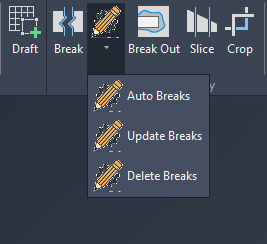
- Auto Breaks (premium) — breaks long views automatically, using the gap and style from Settings.
- Update Breaks (premium) — re-applies the gap to the selected views after a change.
- Delete Breaks — removes breaks from the selected views, or from every view on the sheet when nothing is selected.
General
Sheet-wide clean-up. All of these are free.
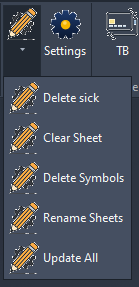
- Delete sick — removes erroneous values left behind on the sheet.
- Clear Sheet — clears every component from the active sheet.
- Delete Symbols — removes all symbols from the active sheet.
- Rename Sheets — renames each sheet after the document it references.
- Update All — updates every sheet and the documents it references.
Settings
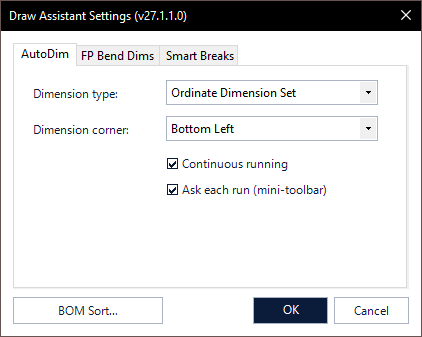
- AutoDim — the dimension type (for example Ordinate Dimension Set) and the corner it starts from. Continuous running keeps it going across views; Ask each run shows a mini-toolbar so you can confirm each time.
- FP Bend Dims — how bend dimensions are placed on flat patterns.
- Smart Breaks — the gap and style used by Auto Breaks.
- BOM Sort… — opens the BOM sort setup.
Title Block & Border
Drawing ribbon → Manage tab → Define panel.
The Title Block button replaces the title blocks and borders of your drawings with the ones from a source drawing and copies their data across. It used to be the separate Title Block Replacement add-in and has been part of Drawing Assistant since Axion 27.1.5.
- Set it up once in Title Block & Border Setup: the source drawing, which title blocks and borders to use, and how their fields map. The setup opens by itself the first time, while nothing is configured, and is always reachable from Drawing Assistant Settings → General.
- Run it with the button, or let it run automatically after a drawing opens or before it is saved.
- Settings can differ per project.
- Coming from Title Block Replacement? Your settings carry over unchanged — both use the same file — and on the first click Axion offers to switch the old add-in off, so the two never act on the same drawing. Your licence stays valid.