A component filter decides which components a module acts on. You build it once from the properties you already use — BOM structure, document type, material, thickness, part number, any iProperty — and save it as a named, reusable pattern. Modules that work across the components of an assembly share this same dialog and the same saved patterns.
Used by: ADC (which components get a drawing). Any module that offers a Component filter box uses the dialog described here.
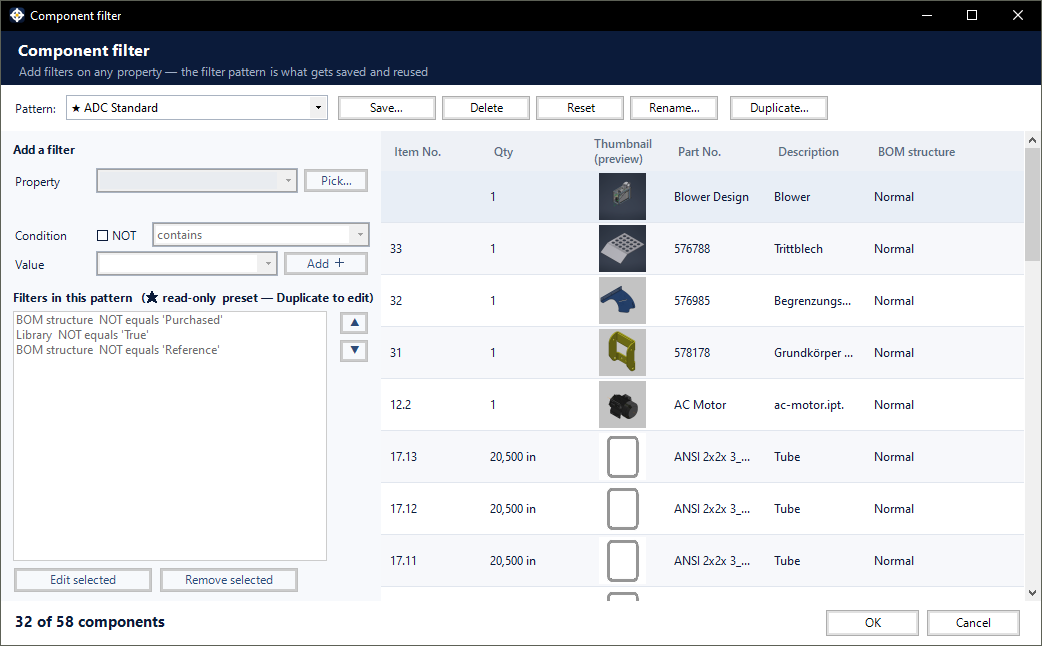
Opening the dialog
In the host module’s settings, find the Component filter box, then click Edit…. In ADC this is on the General tab. The settings window hides while the filter is open and returns when you close it, so you only ever have one window in front of you.
Patterns
The Pattern drop-down at the top holds everything you can choose from: the built-in presets and any pattern you have saved yourself.
- ★ Built-in presets are read-only. To base your own pattern on one, open it and click Duplicate….
- Save… stores the current filters under a name of your choice.
- Rename…, Duplicate… and Delete manage your own patterns.
- Reset clears the builder so you can start again.
Choosing All components in the host’s box means no filtering at all — every component is processed.
Building a filter
- Property — pick what to test. Use Pick… to browse everything the model offers, including standard and custom iProperties and parameters — that button opens the Property Composer.
- Condition — how to compare. The list adapts to the property you chose, so you are only offered comparisons that make sense for it (see below).
- NOT — tick to invert the rule, e.g. BOM structure NOT equals Purchased.
- Value — what to compare against. Where a property has a fixed set of values, you choose from a list instead of typing, so a typo cannot silently match nothing.
- Add + — the rule joins the list below.
All rules in a pattern must match — they combine with AND. Use Edit selected and Remove selected to change the list, and the arrows to reorder it.
Conditions follow the property
- Yes/No properties (Library, Top level) — equals only. The NOT tick already gives you the opposite.
- Fixed-value properties (Document type, BOM structure) — equals, chosen from the real list of values.
- Numeric properties (Thickness) — equals, greater/less than, between, is empty.
- Text properties (Part No., Description, iProperties) — the full set, including contains and starts with.
Quantity stays a text property on purpose: on quantity-by-measure items it is a value with a unit, such as 20,500 in, so contains remains useful there.
The preview
The grid on the right shows the components your pattern currently matches, with a thumbnail so you can recognise them at a glance. The count at the bottom left — for example 32 of 58 components — tells you exactly how much the filter keeps before you commit to anything. In ADC the list is ordered by your BOM sort setup, so it reads the same way as the parts list you will get.
The main assembly itself appears as the first row, so a pattern can include or exclude it like any other component.
Where patterns are stored
- Saved patterns belong to you, not to a single project, so you can reuse them anywhere.
- They are included in Export Settings and Import Settings, which is how you move them to another PC or share them with a colleague.
- A pattern is stored in a compact, non-editable form. Build and change patterns in this dialog rather than by editing files.
- Patterns are language-independent: one saved on a German installation behaves identically on an English one.
Tips
- Start from the preset closest to what you want and Duplicate… it.
- Watch the count as you add rules — if it drops to zero, the last rule is the one to look at.
- To exclude bought-in and library content, filter on BOM structure NOT equals Purchased together with Library NOT equals True.
- If components you expected are missing from the preview, make sure the assembly and its parts are saved — components that have never been saved are not in the BOM and cannot be filtered.