Everything Model Assistant needs to know is set up once in its settings. Open BM › Model Assistant › Settings. The General tab has one button per area; each opens its own window and is saved with OK.
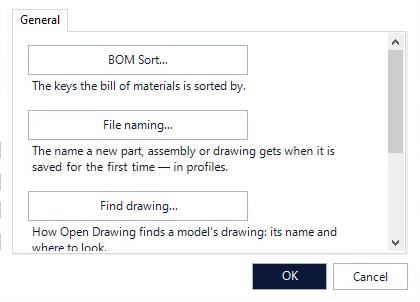
BOM Sort…
The columns the bill of materials is sorted by — up to three, each ascending or descending. Shared with ADC and Drawing Assistant. See BOM Sort and BOM Reset.
File naming…
The name a new part, assembly or drawing gets when it is saved for the first time.
- Name new files from a pattern when they are saved for the first time — the main switch, off by default.
- Profile — patterns are kept in profiles (New…, Copy…, Rename…, Delete). The profile you pick is used for the active Autodesk Inventor project; with no project active, Standard is used.
- Name for — parts, sheet metal (or the same as parts), assemblies and drawings each get a pattern. Click the pattern to compose it from the date, text, a file type code and a running number.
- When saving — Suggest (the Save dialog opens with the name filled in) or Automatic (saved with the name, no dialog).
- Drawing — the same name as the model, or its own pattern, and the Drawing folder: where the folder’s other drawings are, the model’s folder, a sub-folder, a parallel folder or a fixed folder.
- Next number for each kind, Start the numbering at 1 again when the date in the name changes, and Skip a name that already exists anywhere in the project workspace.
See Files and drawings.
Find drawing…
How Open Drawing finds a model’s drawing.
- Drawing file name — click to compose the name from the model’s properties; right-click to clear. Empty means the model’s own file name, which is what most drawings use.
- Also search the project workspace and Include its sub-folders.
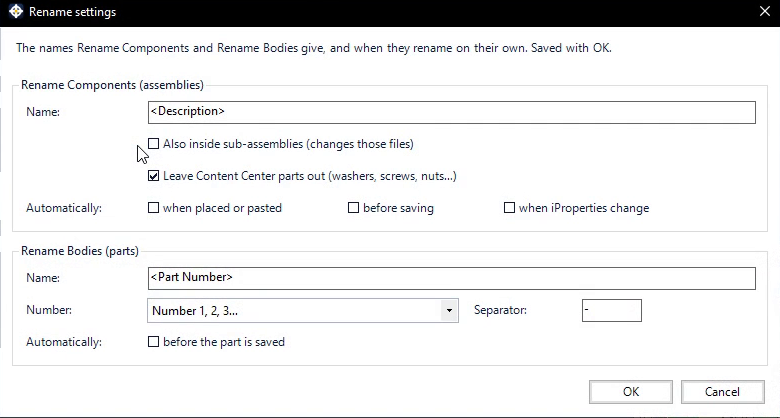
Rename…
The names Rename Components and Rename Bodies give, and when they rename on their own.
- Rename Components (assemblies) — the Name pattern (for example
<Description>), Also inside sub-assemblies (this changes those files), and Leave Content Center parts out (on by default). - Automatically — when placed or pasted, before saving, when iProperties change. All off by default.
- Rename Bodies (parts) — the Name pattern (for example
<Part Number>), the Number style and the Separator, and Automatically before the part is saved (off by default).
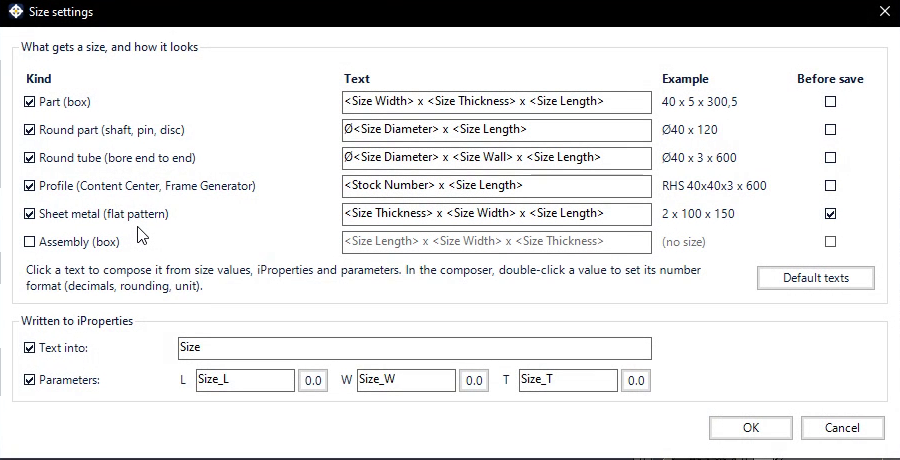
Size…
How Size Info measures, the text it writes and where.
- Kind — which kinds get a size: part (box), round part (shaft, pin, disc), round tube, profile (Content Center, Frame Generator), sheet metal (flat pattern) and assembly (box, off by default).
- Text — click a text to compose it from size values, iProperties and parameters; in the composer, double-click a value to set its number format (decimals, rounding, unit). The Example column shows the result. Default texts puts the defaults back.
- Before save — write the size automatically before every save, per kind. Off by default.
- Written to iProperties — Text into (default: a custom iProperty Size) and Parameters for length, width and thickness (off by default; names Size_L, Size_W, Size_T).
Where the settings are kept
Your Model Assistant settings are saved on your computer, together with the settings of the other BLUE MECH modules, in%AppData%\Autodesk\ApplicationPlugins\BM_Axion\Settings\BM_Axion.Common\BM_Axion.Common.config.
To back them up, copy this file while Autodesk Inventor is closed. It also holds the next file numbers and the other modules’ settings, so always restore the whole file.