Slot Mid-Axis
Slot Mid-Axis (Model Assistant menu, Part and Assembly ribbons) creates the mid-axis of a slot. Select one of the slot’s faces and Model Assistant builds a work axis through the slot’s centre, with work points on both faces. Use it to centre a hole or a component on a slot without width- or length-based constraints that need updating when the slot changes.
This is the tool the separate SMA (Slot Mid-Axis) add-in used to provide.
Content Center visibility
The CC Visibility menu on the BM tab of the Assembly ribbon acts on every Content Center part of the active assembly at once:
- Hide and Show — switch their visibility.
- Suppress and Unsuppress — take them out of the assembly and bring them back.
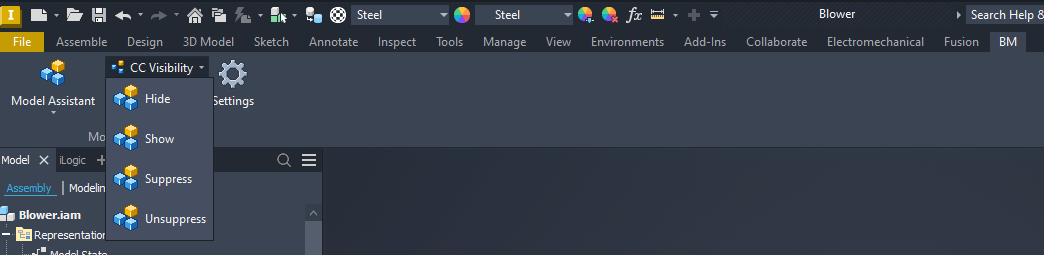
This replaces the separate CC Visuality add-in. Its settings form and automatic triggers were not carried over; the four commands run when you click them.
Toggle Orig. Work Planes
To constrain to a component’s origin planes, select one or more components in an assembly, right-click and choose Model Assistant › Toggle Orig. Work Planes. Their origin work planes appear; the same command hides them again.
- Showing is cumulative, so you can show the planes of two components and mate them.
- Hiding puts every plane back the way it was before you first showed it.
- Origin-plane visibility belongs to the part, so every placement of the same part shows its planes — the same as Autodesk Inventor’s own visibility toggle — and the part is marked as modified.