Open Drawing opens the drawing that belongs to the active part or assembly, without browsing for it. You find it in the Model Assistant menu on the BM tab of the Part and Assembly ribbons.
Where it looks
Model Assistant looks in the order you would:
- Drawings already open in Autodesk Inventor that reference the model.
- The model’s own folder.
- The project workspace, if you switch that on in Settings.
The model must be saved first, because the drawing is looked for beside the model file. If nothing is found, Model Assistant says so — check the drawing file name in Settings.
Settings
Open Settings on the Model Assistant panel and choose the Open Drawing tab.
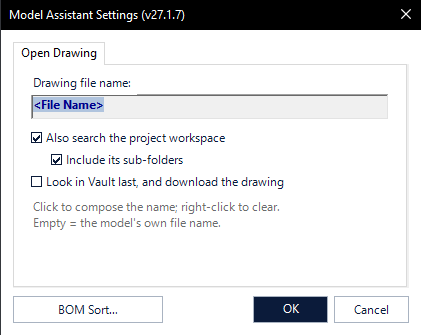
- Drawing file name — click the field to compose the name from the model’s properties in the Property Composer; right-click to clear it. Empty means the model’s own file name, which is what most drawings use.
- Also search the project workspace — looks in the workspace of the active Autodesk Inventor project as well.
- Include its sub-folders — extends that search to the folders below the workspace.